How to Manage Multiple Facebook Accounts at Once
Running Facebook outreach across 5, 10, or 20 accounts without getting any flagged requires aged accounts, isolated browser profiles, and one rule most operators ignore on day one.
Quick Answer
- Never run outreach from your personal Facebook profile — one restriction and your real account, your Marketplace history, your friends list, everything is gone
- The full stack: aged Facebook accounts + residential proxy per account + antidetect browser + VPS to run everything 24/7
- First 24 hours after setup: log in once, browse naturally for 10–15 minutes, then leave the account completely alone for a full day before any activity
- Automation: only after a proper warmup — connecting automation tools to an unwarmed account is the fastest way to lose it
Why Managing Multiple Facebook Accounts for Outreach Fails Without the Right Setup
Facebook’s behavioral detection is more sophisticated than most people expect. It doesn’t just track what you do — it tracks how you do it, where you do it from, what device you’re using, and whether your patterns match a real person or automated software. Running multiple accounts from the same browser, the same IP, or the same machine creates a web of shared signals that Facebook’s systems are specifically trained to identify as coordinated inauthentic behavior.
The result is always the same: one account gets flagged, then the others follow because they share the same fingerprint trail. An operator who set up 10 accounts over two weeks loses all 10 in 24 hours because the infrastructure underneath them was never properly isolated.
This guide covers the complete setup — what accounts to use, how to isolate each one, what to do in the first 24 hours, and how to scale without any account contaminating another.
- Use personal Facebook for outreach campaigns
- Fresh accounts — zero trust history
- Same IP across all accounts
- Same browser for everything
- Start messaging immediately after login
- All accounts flagged within days
- Dedicated aged accounts — personal profile untouched
- 2+ years of real activity history per account
- One residential proxy per account
- Isolated browser profile per account
- 24-hour rest after first login, then gradual warmup
- Accounts running at full outreach volume for months
Why You Need Aged Facebook Accounts — Not Fresh Ones
Every fresh Facebook account starts with zero trust. No login history, no activity patterns, no friends, no engagement — nothing for Meta’s algorithm to evaluate. That zero-history starting point means immediate sending restrictions, higher flagging rates, and a very short lifespan before the first checkpoint or restriction hits.
Aged Facebook accounts skip this by arriving with real account history already established — months or years of logins, activity patterns, and behavioral signals that Meta reads as a legitimate, established user. That history is the difference between an account that gets restricted in 48 hours and one that runs cold outreach campaigns for months.
Where to Buy Aged Facebook Accounts for Outreach
coldaccs.com specializes in aged Facebook accounts built for outreach and lead generation. Every account has established activity history that Meta’s systems recognize as legitimate, making them significantly more stable than fresh accounts for messaging campaigns. Bulk orders are supported with different setup per account in the batch.
- ✓ Verified account history — not freshly created profiles
- ✓ Built specifically for outreach and lead generation use cases
- ✓ Bulk orders available for agencies and operators scaling campaigns
- ✓ Replacement guarantee if an account has issues
- ✓ Card payment accepted — no crypto lock-in
The Complete Tech Stack for Managing Multiple Facebook Accounts
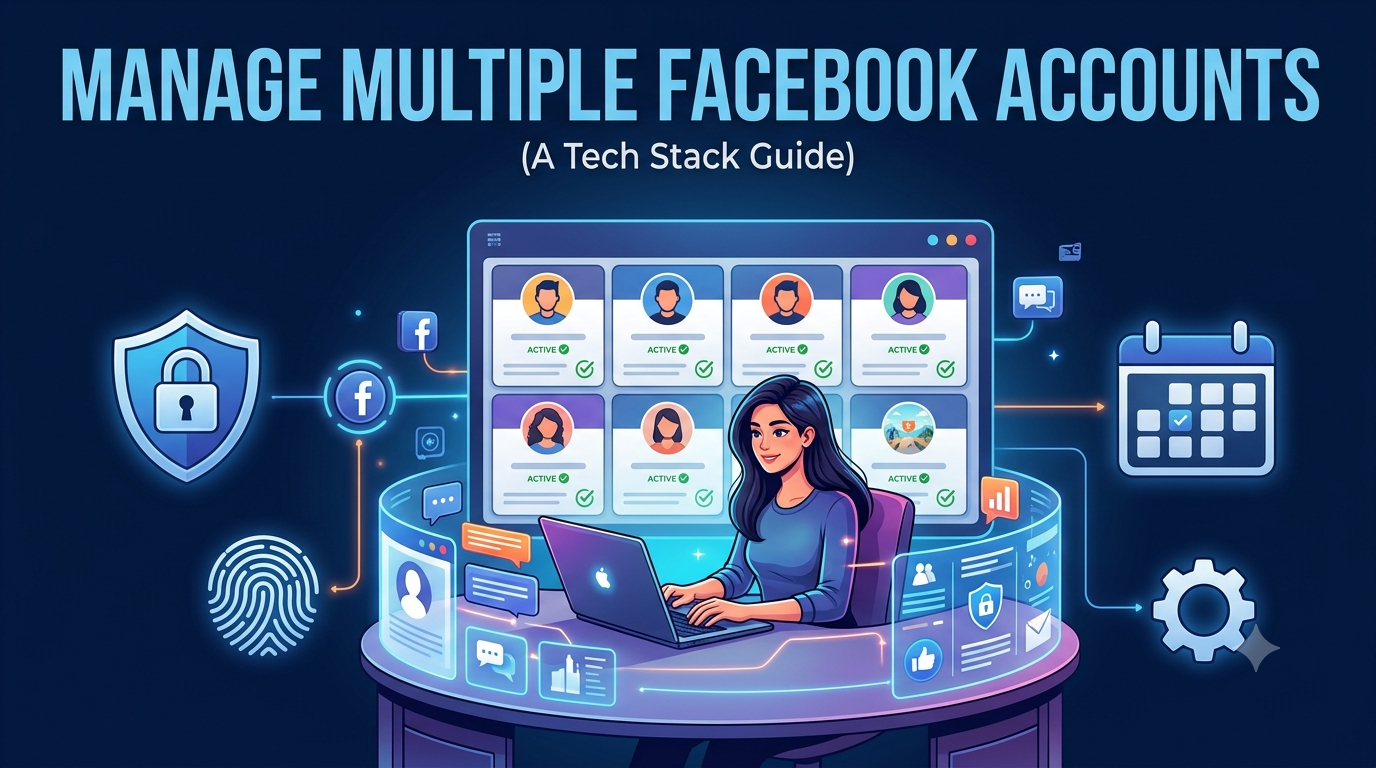
Aged accounts are the foundation but the infrastructure around them is what keeps them safe. Every account needs its own completely isolated environment — its own IP, its own browser fingerprint, its own behavioral history. Here’s the full stack and why each piece is non-negotiable.
| Tool | Purpose | Provider | Starting Price |
|---|---|---|---|
| Aged Facebook Accounts | Real history — outreach and lead gen ready | coldaccs.com | Ask for pricing |
| Residential Proxies | Unique IP per account — geo-matched | webshare.io | ~$1/proxy |
| Antidetect Browser | Isolated browser profile per account | hidemyacc.com | From $10/month |
| VPS / Server | Run all accounts 24/7 remotely | petrosky.io | From 10€/month |
| DM Automation | Automated Messenger outreach 24/7 | messengerflow.com | Check pricing |
How to Set Up and Manage Multiple Facebook Accounts Safely
The first decision is where to source your accounts. Aged Facebook accounts from a specialized provider arrive with established history that Meta already recognizes as legitimate. Avoid general marketplaces where “aged” can mean a 2-week-old account. For bulk operations, plan to stagger warmup start dates across the batch — starting 2–3 accounts per week rather than all at once keeps each warmup manageable.
- Buy aged accounts from coldaccs.com — built specifically for outreach and lead generation
- Assign one account per client or campaign — never run two separate campaign threads from the same account
- If buying in bulk, plan staggered warmup start dates — 2–3 new accounts per week maximum
- Confirm full login access is included — email, password, and any 2FA details
Facebook logs every IP address that accesses each account and builds a fingerprint of where it logs in from. Accounts that suddenly log in from a new IP — especially a datacenter IP — trigger immediate security reviews. Every account needs its own dedicated residential proxy that stays consistent throughout the account’s entire operational life.
- Get Private Static Residential Proxies from webshare.io — approximately $1 per proxy
- Match the proxy country to the Facebook account’s registration geography — a US account needs a US proxy
- One proxy per account, no exceptions — sharing proxies between accounts links them together in Facebook’s systems
- Never swap the proxy on an active account — IP consistency is one of the most important trust signals Facebook tracks
Facebook’s device detection goes beyond IP tracking. It fingerprints your browser environment — canvas signature, WebGL, screen resolution, installed fonts, timezone, and dozens of other signals — and uses that fingerprint to link accounts to each other. Running multiple Facebook accounts in a regular Chrome browser, even with different profiles, creates shared fingerprint signals that Facebook is trained to detect. Each account needs a completely unique, isolated browser environment.
- Get HideMyAcc from hidemyacc.com — choose a plan matching your account count
- Create one browser profile per Facebook account — label each clearly by client or campaign name
- Assign the matching residential proxy to each browser profile before any login
- Never open two different Facebook accounts from the same browser profile — ever
- Starter plan handles up to 30 profiles — upgrade as account count grows
Managing multiple Facebook accounts from your personal laptop is not sustainable at any real scale. Your machine goes offline when you close it, travels with you creating inconsistent IP signals, and shares its environment with everything else you do online. A VPS is a dedicated remote server that runs your browser profiles 24/7 from a stable, consistent environment that never changes — the exact behavioral consistency Facebook’s systems look for in a legitimate user.
- Get a VPS from petrosky.io — from 10€/month, scale resources as account count grows
- Install HideMyAcc on the VPS and run all browser profiles from there
- Access the VPS remotely from your own machine to manage campaigns and monitor activity
- More accounts = more CPU and RAM required — upgrade at 5–7+ accounts
This is the step that separates operators who keep accounts long-term from those who burn through them in weeks. When you connect an aged Facebook account to a new proxy and browser environment for the first time, Facebook registers a new device and IP combination. That new login session needs 24 hours to settle and be recognized as a normal access pattern before any outreach activity begins. Skipping this rest period — even on a well-aged account — significantly increases early restriction risk.
- Log in for the first time through the correct HideMyAcc profile with the assigned proxy active
- Browse naturally for 10–15 minutes — scroll the feed, view a few posts, check notifications
- Do not send any messages, friend requests, or post anything
- Do not change profile information, profile picture, or account settings
- Log out normally and leave the account completely alone for a full 24 hours
- After 24 hours, begin the gradual warmup process — never jump straight to outreach volume
Even with an aged account that has years of history behind it, every new login session to a new environment needs a warmup period. Facebook’s systems track behavioral velocity — how quickly an account goes from first login to high-volume messaging. Jumping from zero to 30+ messages per day on the same day as first login is a flag regardless of account age. The warmup builds the behavioral baseline that makes sustained outreach sustainable.
- Days 1–3: browse naturally, like a few posts, respond to any existing notifications — no outreach
- Days 4–7: start sending 3–5 messages per day to warm contacts or relevant groups — keep messages personalized
- Days 8–14: gradually increase to 10–15 messages per day — maintain personalization, no copy-paste blasts
- Days 15–20: scale to full outreach volume — 25–30 messages per day for sustained campaigns
- If restricted or checkpointed at any point, pause all activity for 24–48 hours before resuming at lower volume
- Full Facebook outreach guide: How to Get Clients with Facebook Cold Outreach →
Once an account has completed the warmup period and is consistently sending messages without any checkpoints or restrictions, it’s ready for automation. MessengerFlow handles Facebook Messenger outreach automatically — managing message sending, follow-ups, and campaign sequencing across all your accounts so you’re not manually logging into each one every day.
- Never connect automation tools before the warmup is complete — this is the single most common cause of early account loss
- Get MessengerFlow from messengerflow.com — purpose-built for Facebook Messenger outreach automation
- Keeps daily message volume within safe limits automatically — no manual monitoring required
- Manages follow-up sequences across multiple accounts so no prospect goes uncontacted
- Runs 24/7 from your VPS — fully automated while you focus on closing the replies
What Never to Do When Managing Multiple Facebook Accounts
🚫 Never — For Any Account
- Skip the 24-hour rest period after first login — this is the most common cause of early restrictions even on aged accounts
- Log into two different Facebook accounts from the same browser profile
- Swap or change the proxy on an active account mid-campaign — IP consistency is critical
- Use your personal Facebook profile for any outreach campaigns
- Connect automation tools before the full warmup period is complete
- Send identical copy-paste messages from multiple accounts simultaneously — Facebook detects coordinated messaging patterns
- Jump from 0 to 30+ messages per day on the same day as first login
- Log into a VPS-running account from your personal machine at the same time
- Add payment methods or run ads on accounts in their first week — this triggers additional verification
- Run multiple accounts from the same IP address — even for one session
How to Run 10+ Facebook Accounts at Once Without Losing Any
Label every account, proxy, and browser profile from day one
Create a simple spreadsheet tracking account → proxy → browser profile → client or campaign. At 3 accounts this feels unnecessary. At 10 accounts it’s the only thing preventing the kind of mix-up that links accounts together and takes down your entire operation in one sweep.
Stagger new account starts — 2–3 per week maximum
When adding new accounts, never set up all of them on the same day. Staggering means you always have accounts at different stages — some fully warmed and running, some in the warmup phase — which smooths capacity and keeps each warmup individually manageable to monitor.
Upgrade VPS resources before you hit the limit
Each browser profile running on the VPS uses CPU and RAM. 3–5 accounts run fine on an entry-level plan. At 10+ accounts, plan to upgrade before performance degrades — slow browser profiles create inconsistent behavioral patterns that can look suspicious to Facebook’s activity monitoring.
Review each account weekly for early warning signs
A weekly check of message acceptance rates, any checkpoint appearances, and activity consistency takes 15 minutes and catches problems before they become restrictions. An account that’s getting fewer message acceptances is signaling stress — reduce volume before Facebook takes harder action.
Full outreach strategy guide
For the complete strategy on how to use Facebook accounts for client acquisition — targeting, messaging frameworks, follow-up sequences, and what niches convert best — read the full guide: How to Get Clients with Facebook Cold Outreach →
1 Account. 1 Proxy. 1 Browser Profile. No Exceptions.
The infrastructure is what keeps accounts alive. Aged accounts give you the starting trust. Isolated environments keep accounts from contaminating each other. The 24-hour rest after first login protects the new session. And the gradual warmup is what makes automation sustainable at full volume.
Buy Aged Facebook Accounts →Real account history · Built for outreach & lead gen · Replacement guarantee · Card payment
Frequently Asked Questions
Use one residential proxy, one isolated browser profile in HideMyAcc, and one aged account per campaign — all running from a VPS. After first login, wait 24 hours before any activity. Then follow a gradual warmup over 15–20 days before reaching full messaging volume. Never share IPs or browser profiles between accounts — cross-account linking is the most common cause of simultaneous mass restrictions.
Fresh Facebook accounts start with zero trust history — strict messaging limits from day one, high checkpoint rates, and short operational lifespans. Aged accounts with established activity history are treated by Meta’s systems as legitimate, established users — which means lower restriction rates, higher messaging capacity after warmup, and significantly longer account lifespan for outreach campaigns.
When you connect a Facebook account to a new proxy and browser environment for the first time, Facebook registers a new device and IP combination. That new login session needs time to be recognized as a normal access pattern before any outreach activity begins. Jumping into messaging on the same day as first login signals automated behavior to Facebook’s systems — even on well-aged accounts — and significantly increases the risk of early restriction.
There’s no fixed maximum — the constraint is your infrastructure. Each account needs its own browser profile and proxy. An entry-level VPS handles 3–5 accounts comfortably. Upgrading to a more powerful VPS plan lets you scale to 10, 20, or more. The operational principles don’t change with scale — one isolated environment per account, always.
After a complete 15–20 day warmup, aged Facebook accounts can typically handle 25–30 messages per day for sustained outreach. This number builds up gradually during warmup — starting at 3–5 per day and increasing over two to three weeks. Jumping to maximum volume before completing warmup is the fastest way to trigger a Facebook checkpoint or restriction.
Only after the full warmup period is complete and the account is consistently hitting its daily message target without any checkpoints or restrictions. Connecting automation tools like MessengerFlow to accounts that haven’t been warmed removes the behavioral baseline that makes automated outreach sustainable — and is one of the most reliable ways to lose an account quickly.
Practically yes — for anything beyond 2–3 accounts. A VPS runs all your browser profiles and accounts 24/7 from a stable, consistent environment completely separate from your personal machine. Without a VPS, accounts go offline when your laptop does, your personal IP environment gets mixed in, and behavioral consistency — which Facebook specifically monitors — is impossible to maintain at scale.
coldaccs.com specializes in aged Facebook accounts built for outreach and lead generation. Accounts have verified activity history and come with a replacement guarantee and card payment acceptance. Bulk orders are available for operators running campaigns across multiple accounts simultaneously.

1 Comment
[…] Managing multiple Facebook accounts across campaigns? Read our complete operational guide: How to Manage Multiple Facebook Accounts at Once — covering proxy assignment, browser profiles, VPS setup, and campaign scheduling across 5 to 20+ […]