How to Manage Multiple LinkedIn Accounts for my Clients?
Running LinkedIn outreach for 5, 10, or 20 clients at once without getting any account flagged requires the right tech stack, the right account setup, and one golden rule most agencies get wrong from day one.
Quick Answer
- Never use your clients’ real LinkedIn accounts for outreach — if the account gets restricted, you lose the client. Use dedicated rented or purchased accounts instead
- The tech stack: antidetect browser (HideMyAcc) + residential proxy per account + VPS to run everything 24/7 — one isolated environment per account, no exceptions
- First 24 hours after setup: do nothing. Log in once, connect your proxy, then leave the account alone for a full day before any activity
- Fastest setup: rent pre-warmed ID-verified LinkedIn profiles from coldaccs.com — Sales Navigator included, ready to use, no warmup wait
The Problem Every Agency Hits When Managing Multiple LinkedIn Accounts
Most SDRs and agency owners start by doing LinkedIn outreach from their own account or their clients’ personal profiles. It works until it doesn’t — and when it stops working, it stops badly. A restriction on a client’s personal LinkedIn profile doesn’t just pause the campaign. It puts their professional network, their reputation, and years of connections at risk. Clients don’t forgive that easily.
The second mistake is running multiple accounts from the same machine, same browser, or same IP without any isolation. LinkedIn’s systems are significantly better at detecting this than most people realize. Even with careful manual operation, accounts logged in from the same environment start cross-contaminating each other’s behavioral signals. One account gets flagged, and the others follow.
The solution is straightforward — but most agencies only implement it after they’ve already burned a few accounts. This guide covers the complete setup so you don’t have to learn it the hard way.
- Use client’s personal LinkedIn account
- Run all accounts from same browser
- No proxy — all accounts share same IP
- Jump straight to full outreach volume
- No isolation between client accounts
- Account gets restricted → client relationship damaged
- Dedicated account per client — never their personal profile
- Isolated browser profile per account in antidetect browser
- One residential proxy per account
- 24-hour rest after first login before any activity
- Gradual warmup before full volume
- Clients never at risk — campaigns always running
Never Run Outreach from Your Client’s Real LinkedIn Account
This deserves its own section because it’s the single decision that separates agencies that scale from agencies that constantly deal with angry clients.
When you run cold outreach from a client’s personal LinkedIn profile, you’re putting everything they’ve built on LinkedIn at risk — every connection, every endorsement, every year of professional history — every single time you send a batch of messages. The moment that account gets flagged or restricted, the client doesn’t just lose the campaign. They lose their LinkedIn presence.
The professional solution is to run all outreach from dedicated accounts — either rented ID-verified profiles or purchased aged accounts — that are completely separate from your clients’ personal identities. If something goes wrong with one of these accounts, it gets replaced. The client’s real profile is never touched.
The Recommended Approach: Rent ID-Verified LinkedIn Profiles
Rented profiles from coldaccs.com come pre-warmed with recent activity, Sales Navigator already activated at no extra cost, and a replacement guarantee if anything goes wrong. You skip the entire warmup period and start outreach within 24 hours of setup. Each profile is ID-verified — meaning it carries a legitimate trust signal with LinkedIn’s systems that fresh or low-quality accounts don’t have.
- ✓ Sales Navigator included free — normally $100–120/month extra
- ✓ Pre-warmed — recent activity already on the profile
- ✓ Replacement guarantee if account gets restricted
- ✓ From 99€/month — 5 connection tiers available
- ✓ Up to 25% discount — from the very first account
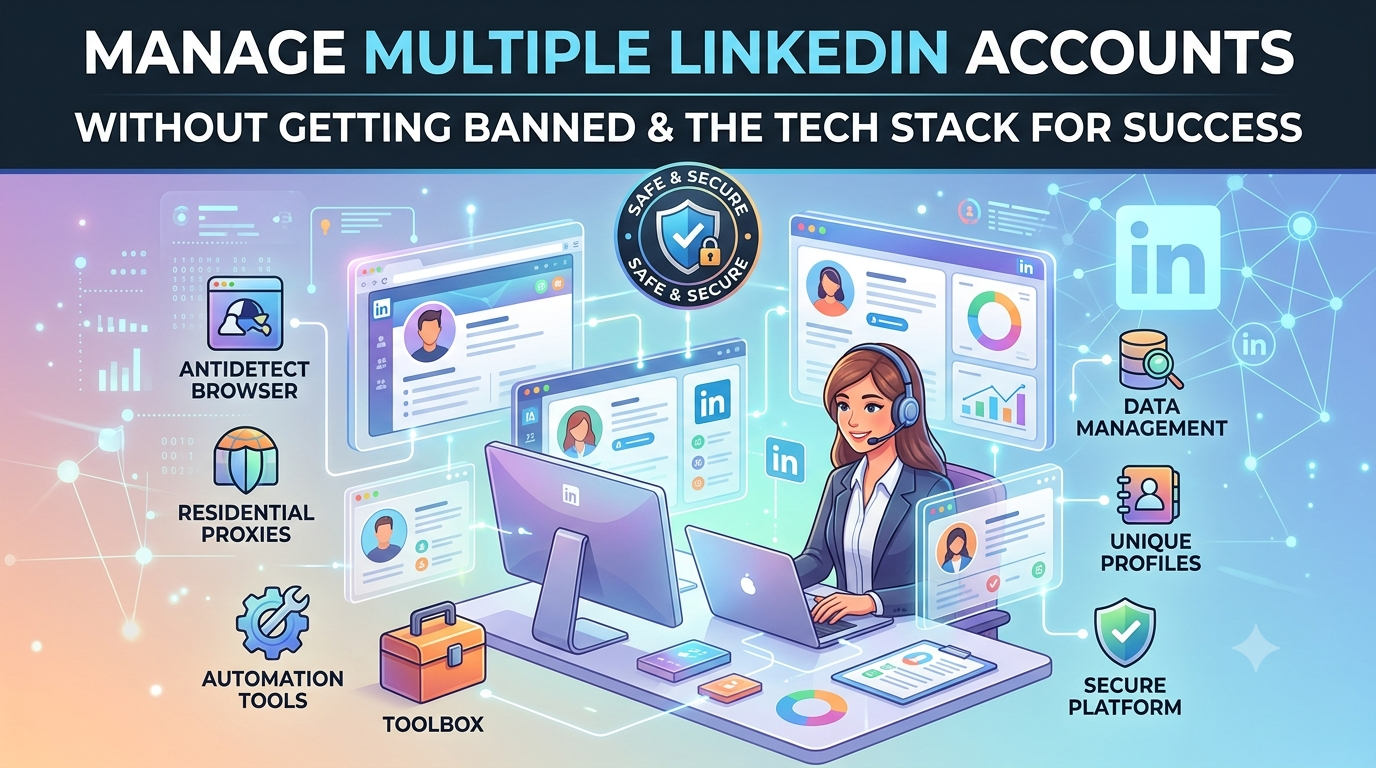
The Complete Tech Stack for Managing Multiple LinkedIn Accounts
Every account needs its own isolated environment — its own browser profile, its own IP address, its own behavioral history. Here’s everything you need and why each piece matters.
| Tool | Purpose | Provider | Starting Price |
|---|---|---|---|
| LinkedIn Accounts | ID-verified profiles for client outreach | coldaccs.com | From 99€/month |
| Residential Proxies | Unique IP per account — geo-matched | webshare.io | ~$1/proxy |
| Antidetect Browser | Isolated browser profile per account | hidemyacc.com | From $10/month |
| VPS / Server | Run all accounts 24/7 remotely | petrosky.io | From 10€/month |
How to Set Up and Manage Multiple LinkedIn Accounts Safely
The first decision is whether to rent or buy. For agency use — where you’re managing outreach for clients and cannot afford account downtime — renting is the better option. Rented profiles come pre-warmed, include Sales Navigator, and have a replacement guarantee. If something goes wrong, the provider handles it. Buying is better for experienced individual operators running lower volume who want full ownership at a one-time cost.
- Rent ID-verified profiles from coldaccs.com — from 99€/month with Sales Navigator included
- Assign one profile per client — never share a single profile across multiple client campaigns
- Choose connection count based on how established you need the profile to look — 100–500+ connections available
Every LinkedIn account must log in from a consistent, unique IP address that matches the account’s registration geography. US accounts need a US residential proxy. European accounts need a European residential proxy. Swapping proxies mid-campaign or using datacenter IPs is one of the fastest ways to trigger a LinkedIn review.
- Get Private Static Residential Proxies from webshare.io — one per account
- Set each proxy to the same country as the LinkedIn account’s registration location
- Never swap the proxy on an active account — the IP must stay consistent throughout the campaign lifecycle
- If managing 10 accounts, you need 10 dedicated proxies — no sharing
An antidetect browser creates completely isolated browser environments — separate cookies, unique device fingerprints, different canvas and WebGL signatures. LinkedIn’s device detection is sophisticated enough that running multiple accounts in a regular browser, even incognito mode, will eventually be detected. Each account needs its own clean browser fingerprint.
- Get HideMyAcc from hidemyacc.com — start with the plan that matches your account count
- Create one browser profile per LinkedIn account — label them clearly by client name
- Assign the matching proxy to each browser profile before first login
- Never log into two different LinkedIn accounts from the same browser profile
- Starter plan handles up to 30 profiles — upgrade as you scale
Managing 10 LinkedIn accounts from your laptop is unsustainable. Your personal machine goes offline, travels with you, and shares its environment with everything else you do. A VPS is a dedicated remote server that runs your browser profiles and accounts 24/7 — completely independent of your personal setup and always on the same IP environment.
- Get a VPS from petrosky.io — from 10€/month, scale CPU/RAM as account count grows
- Install HideMyAcc on the VPS — run all browser profiles from there
- Access the VPS remotely from your machine to manage campaigns
- More accounts = more resources needed — upgrade plan as you scale beyond 5–7 accounts
This is the step most people skip and it’s the one that causes the most early account restrictions. When you connect a LinkedIn account to a new proxy and browser profile for the first time, LinkedIn’s systems register a new device and IP environment. That transition needs time to be recognized as normal before any outreach activity begins.
- Log in for the first time through the correct HideMyAcc profile with the assigned proxy active
- Browse the feed briefly — 5 to 10 minutes of natural scrolling is enough
- Do not send connection requests, InMails, or messages
- Do not change profile information or settings
- Log out and leave the account completely alone for a full 24 hours
- After 24 hours, begin the gradual warmup process
Warming Up LinkedIn Accounts the Right Way
Even pre-warmed rented accounts benefit from a short settling period after connecting to a new proxy environment. The 24-hour rest after first login is mandatory for all accounts. After that, the approach differs depending on whether you’re renting or buying.
Rented profiles — start outreach within 2–3 days
Pre-warmed rented profiles from coldaccs.com already have established activity history. After the 24-hour rest, spend 1–2 days with light activity — browsing, viewing profiles, engaging with a few posts — then begin sending connection requests at a conservative starting volume of 10–20 per day before scaling up.
Purchased accounts — full warmup required
Aged accounts you’ve bought outright need a full warmup process before running any meaningful outreach volume. LinkedIn’s systems treat new login environments with extra scrutiny regardless of account age. Jumping to high volume without warmup is the fastest path to a restriction.
Full warmup guide
For the complete step-by-step LinkedIn account warmup process — including daily limits, what to do and not do in each phase, and how to scale safely — read the full guide: How to Warm Up a LinkedIn Account for Outreach →
What Never to Do When Managing Multiple LinkedIn Accounts
🚫 Never — For Any Account
- Log into two different accounts from the same browser profile — ever
- Swap the proxy on an active account mid-campaign
- Use a client’s personal LinkedIn for outreach campaigns
- Skip the 24-hour rest period after connecting a new account to a new environment
- Jump to maximum connection request volume on day one — even on pre-warmed accounts
- Log in from your personal machine while the same account is running on the VPS
- Use the same message template word-for-word across multiple accounts simultaneously
- Run more than 120–150 connection requests per week per account — even with Sales Navigator
How to Handle 10+ LinkedIn Accounts at Once
Once the infrastructure is in place, scaling from 3 accounts to 10 or 20 is mostly a matter of replicating the same setup — one new browser profile, one new proxy, one new account per client. The operational principles don’t change. Here’s how to keep it organized at scale.
Label everything clearly from the start
In HideMyAcc, name each browser profile after the client it’s for. In Webshare, note which proxy is assigned to which account. A simple spreadsheet tracking account → proxy → browser profile → client prevents the kind of mix-up that causes cross-contamination.
Stagger new account starts across the week
When onboarding new clients, don’t set up all new accounts on the same day. Stagger them — 2 or 3 new accounts per week. This gives you manageable warmup periods to monitor and prevents all accounts from being in the same phase simultaneously.
Scale VPS resources as account count grows
Each browser profile running on the VPS consumes CPU and RAM. 3–5 accounts can typically run on an entry-level VPS plan. At 10+ accounts, upgrade to a plan with more resources — running too many profiles on an underpowered VPS slows everything down and creates inconsistent behavior patterns.
Monitor each account weekly for restriction signals
Set a weekly check-in to review each account’s connection acceptance rate, any warning messages from LinkedIn, and whether daily limits are being respected. Early warning signs are much easier to address than a full restriction. Catching a slowdown in acceptance rate early means you can reduce volume before LinkedIn takes action.
Protect Your Clients. Scale Without Risk.
The right setup turns LinkedIn outreach for multiple clients from a constant risk management problem into a predictable, scalable operation. Dedicated accounts, isolated environments, and the 24-hour rest rule after setup — that’s the foundation everything else is built on.
Rent ID-Verified LinkedIn Profiles →From 99€/month · Sales Navigator included · Pre-warmed · Replacement guarantee · Up to 25% OFF
Frequently Asked Questions
Use an antidetect browser like HideMyAcc with one isolated browser profile per account, one residential proxy per account, and run everything from a VPS. Never share browser profiles or IPs between accounts. After connecting any account to a new environment for the first time, wait 24 hours before any activity. This infrastructure keeps each account completely isolated so a restriction on one doesn’t affect the others.
No — never run cold outreach from a client’s personal LinkedIn profile. If the account gets restricted, the client loses their entire professional presence — every connection, endorsement, and year of history. Use dedicated rented or purchased accounts for all outreach activity. If something goes wrong with a dedicated account, it gets replaced. The client’s real profile is never touched.
There’s no hard limit on how many you can manage — the constraint is your infrastructure. Each account needs its own browser profile and proxy. An entry-level VPS handles 3–5 accounts comfortably. Upgrading VPS resources as you scale to 10 or 20+ accounts is straightforward. The operational setup is the same regardless of scale — one isolated environment per account, always.
When you connect a LinkedIn account to a new proxy and browser environment, LinkedIn’s systems register a new device and IP. That transition needs time to be accepted as normal before any outreach activity. Jumping straight into sending connection requests on the same day as first login is one of the most reliable ways to trigger an early restriction, even on well-aged accounts.
coldaccs.com offers ID-verified LinkedIn profiles for rent from 99€/month with Sales Navigator included at no extra cost. Profiles are pre-warmed with recent activity, come with a replacement guarantee, and are available in five connection count tiers from 30–70 connections up to 500+. Discounts are available from the very first account — no minimum order required.
A properly warmed LinkedIn account with Sales Navigator can handle up to 120–150 connection requests per week safely. Stay under 120 per week for consistent long-term account health. If you need higher volume across a client campaign, rent or buy an additional account rather than pushing one account past its safe limit.
After the mandatory 24-hour rest following first login, the warmup process involves gradually increasing activity over 1–2 weeks — starting with browsing and light engagement before moving to connection requests, then InMails and messaging. The full step-by-step warmup protocol is covered in detail at coldaccs.com/how-to-warm-up-a-linkedin-account-for-outreach/
Not technically — but practically, yes. Managing multiple accounts from a personal laptop means the accounts go offline when your machine does, your personal IP environment is mixed into the equation, and everything depends on one machine being available. A VPS runs all accounts 24/7 from a stable, consistent environment completely separate from your personal setup. At more than 3–4 accounts, a VPS is essential for reliable operation.